
QUICK MATTE PRO / DOCUMENTATION
Quick Matte Pro
documentation.
A practical reference for selections, alpha and ID mattes, saved setups and cleanup.
Quick Matte Pro Overview
Quick Matte Pro is a Cinema 4D matting and object buffer plugin designed to make creating mattes fast, simple, and reliable. With a single click, you can generate clean mattes for objects, materials, or textures without re-rendering your scene or manually setting up object buffers.
Built for motion designers, compositors, and 3D artists, Quick Matte Pro eliminates the tedious setup traditionally required for mattes and multipass workflows in Cinema 4D.
- Create mattes instantly with a click of a button
- Preview mattes and object buffers in the viewport
- Matte materials and textures with alphas
- Render mattes without rendering your RGB scene
- Set an unlimited number of object buffers
- Easy and intuitive controls to get your mattes quick
- Set it all back to normal with the handy “Reset” button
Tested and working with Cinema 4D 2024, 2025, 2026

Interface reference.
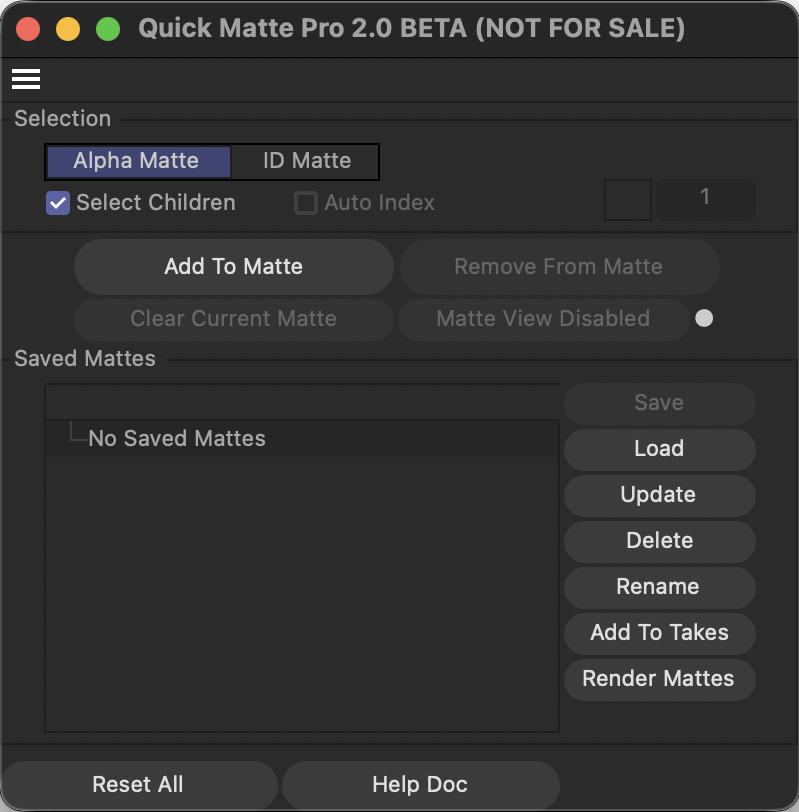
Button Descriptions
Mode / Selection
- Alpha Matte: Uses black/white matte output.
- ID Matte: Uses colored ID mattes (per-object color IDs).
- Select Children: Includes child objects when adding/removing matte assignments.
- Auto Index: In ID mode, automatically increments ID numbers for each selected object.
- ID Color (color field): Sets the color used for the current ID matte.
- ID Number (number field): Sets which ID index/color to use in ID mode.
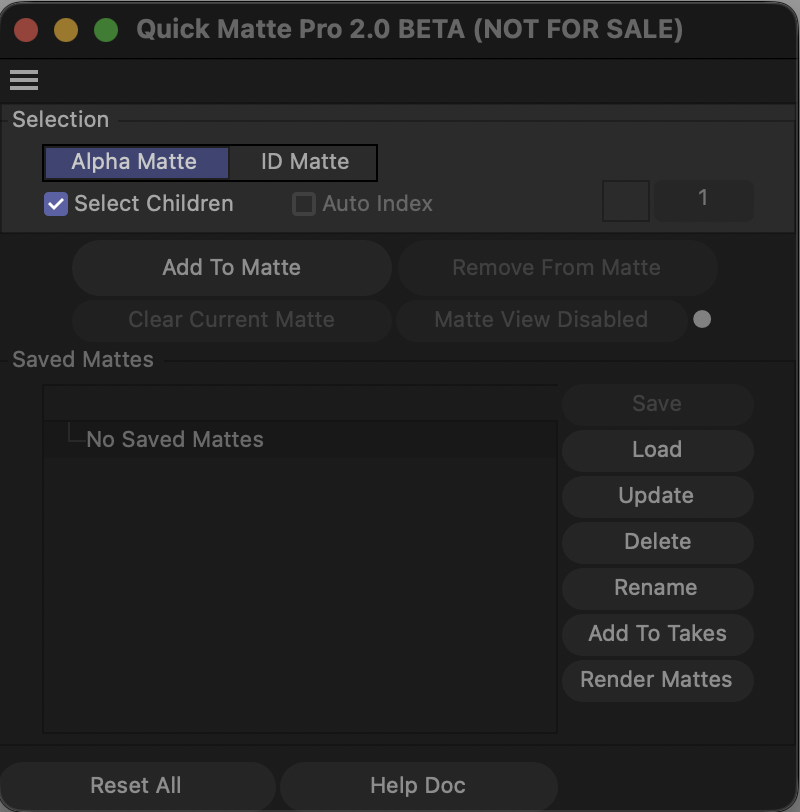
Matte Actions
- Add To Matte: Adds selected objects to the active matte setup.
- Remove From Matte: Forces selected objects to black (removes them from visible matte result).
- Clear Current Matte: Sets all objects to black matte quickly.
- Matte View Active / Matte View Disabled: Toggles Quick Matte render-view mode on/off.
- Status Dot (next to Matte View): Green when matte view is active, gray when disabled.
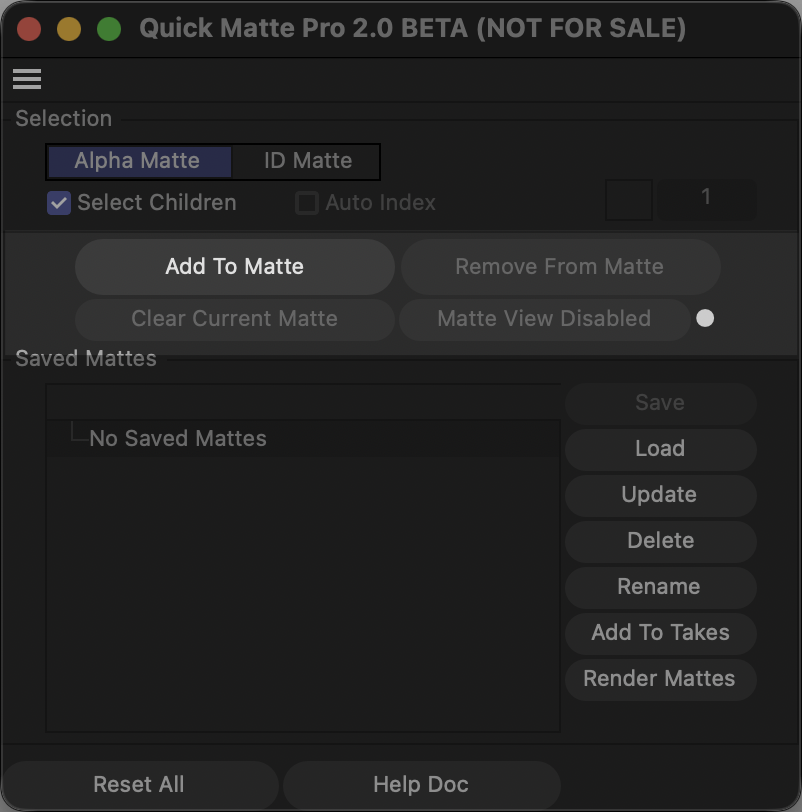
Saved Mattes
- Saved Mattes List: Shows saved matte presets for the current scene.
- Save: Saves the current matte setup as a named preset.
- Load: Loads the selected saved matte preset.
- Update: Overwrites the selected saved matte with the current setup.
- Delete: Deletes the selected saved matte preset(s).
- Rename: Renames the selected saved matte preset and updates internal references.
- Add To Takes: Creates/updates takes for selected saved mattes.
- Render Mattes: Creates/updates and marks selected matte takes, then runs Render Marked Takes.
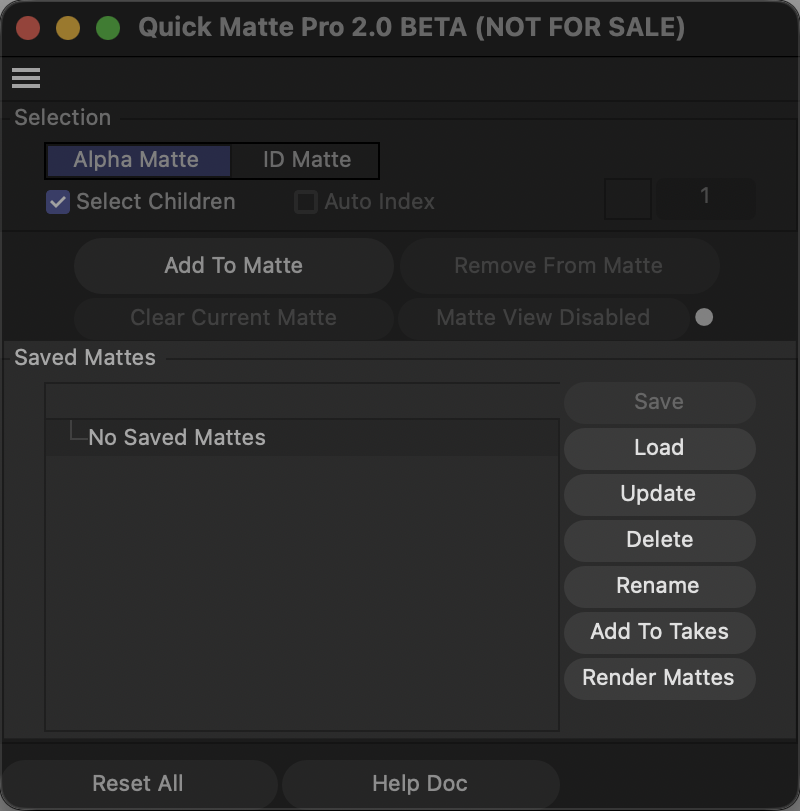
Utility
- Reset All: Removes Quick Matte data from the scene (saved mattes, QMP render settings, and related takes).
- Help Doc: Opens the Quick Matte documentation page.
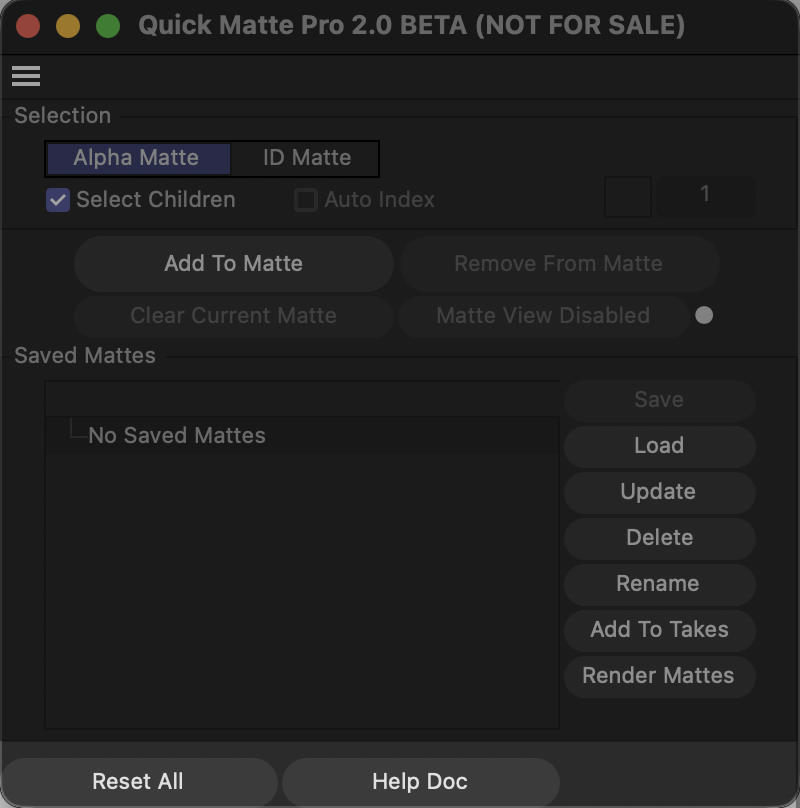
using Alpha matte mode
Alpha Matte is best when you want clean black/white holdout masks.
- Select Alpha Matte.
- Select object(s) in Object Manager (enable Select Children if needed).
- Click Add To Matte to make selected objects white (matted).
- Click Matte View Disabled/Active to toggle matte rendering view.
- Use Remove From Matte to push selected objects back to black.
- Use Clear Current Matte to set everything to black and start over.
using ID matte mode
ID Matte is best when you want multiple object IDs in one pass with unique colors, and Auto Index is the fastest way to generate those variations across large selections.
- Select ID Matte.
- Set an ID Number and/or pick an ID Color.
- Enable Auto Index to quickly assign different IDs/colors across many objects in one go.
- Select multiple objects and click Add To Matte.
- With Auto Index on, each selected object gets the next ID/color automatically, so building large ID sets is fast.
- Toggle matte view with Matte View Disabled/Active.
- Use Remove From Matte or Clear Current Matte as needed.
Saving/loading mattes
Build a matte setup (Alpha or ID), then click Save and name it.
- Select a saved item in the list and click:
- Load: Applies that saved matte to the scene.
- Update: Overwrites that saved matte with your current setup.
- Rename: Renames the saved matte and updates internal references.
- Delete: Removes the saved matte.
- Add To Takes: Creates/updates takes for selected saved mattes.
- Render Mattes: Creates/updates takes, marks them, and runs Render Marked Takes.
How it works:
- Saved mattes are stored per-scene (inside scene data), so each scene has its own matte list.
- Switching scenes refreshes the list automatically.
- ID mattes are labeled in the list as (ID Matte).
- Loading a saved matte automatically switches mode (Alpha vs ID) if needed.
Change Log
-
09-30-23: Working in C4D 2024+
-
11-04-22: Working in C4D 2023
-
09-27-20: Compatible with R23
-
11-09-19: Now checks texture tags when adding texture-tag and material mattes. Non-matted texture tags are set to black automatically (huge fix!).
-
09-11-19: Fixed help doc; now works with any language.
Need a hand?
Send us your Cinema 4D version, plugin version and a clear description of what you are trying to do. An isolated screenshot of the relevant controls helps us understand the issue.