Gaussian Splat documentation
Quick Links
Parameter Descriptions
Gaussian Splat overview
Quick Start
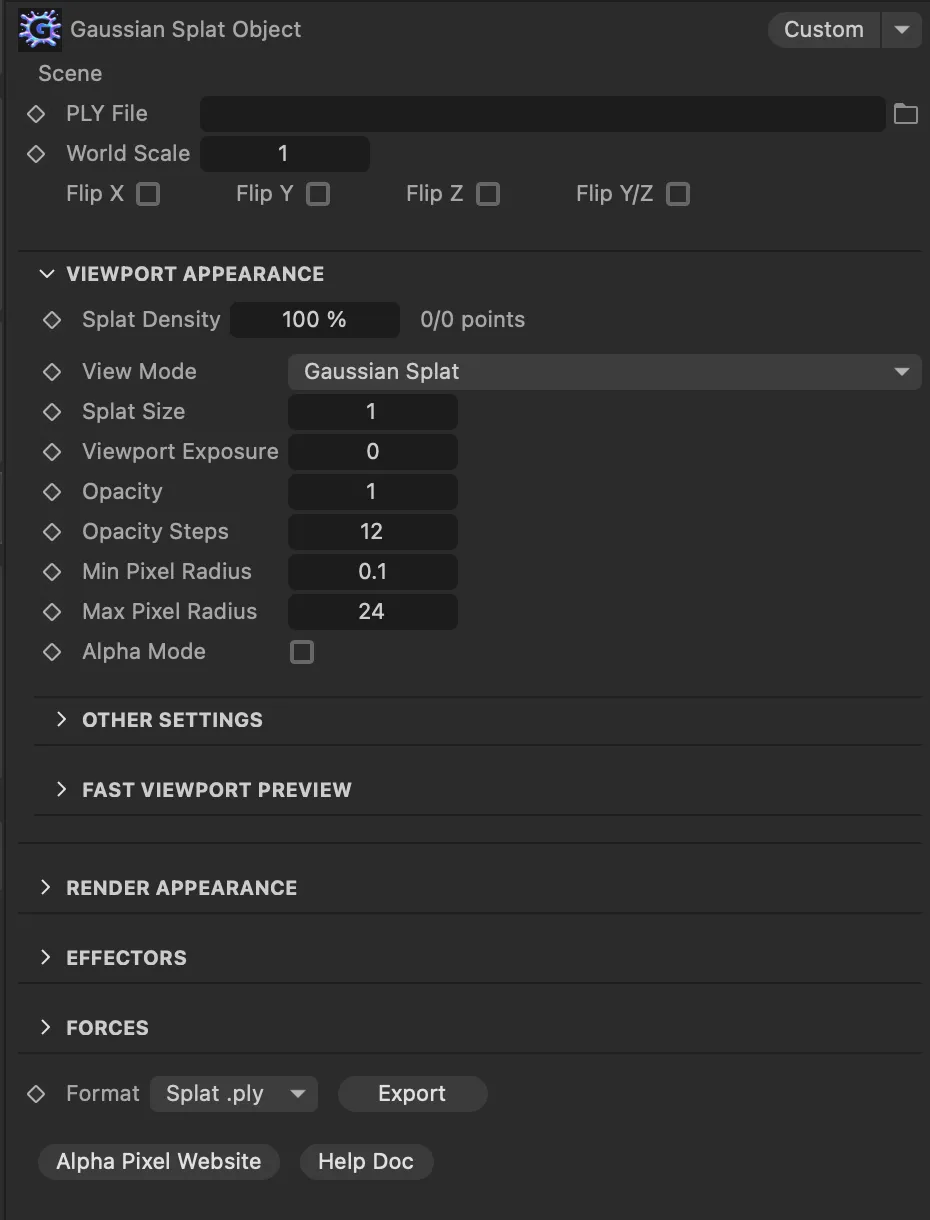
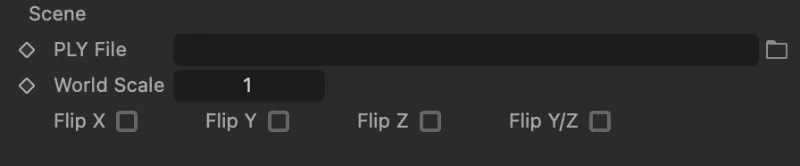
Load a Splat: Add a Gaussian Splat Object to your scene, choose your PLY File, and click Load / Reload. If the scan comes in rotated or mirrored, correct it with Flip X, Flip Y, Flip Z, or Flip Y/Z. Use World Scale to match the splat to your Cinema 4D scene.
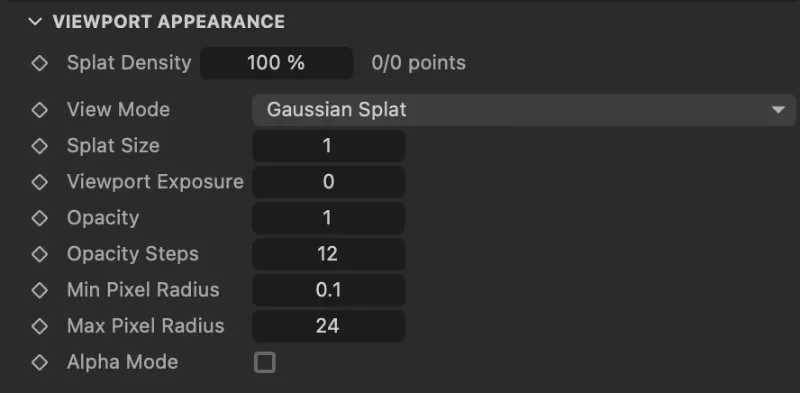
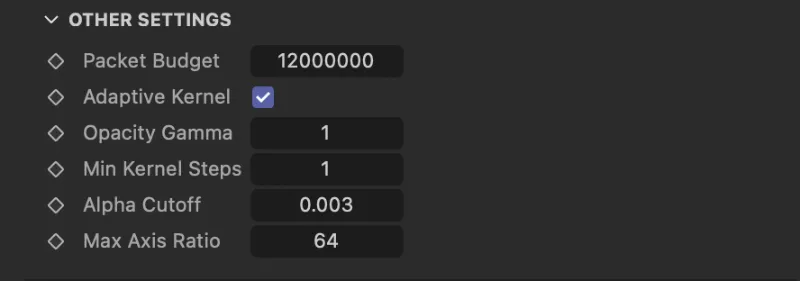
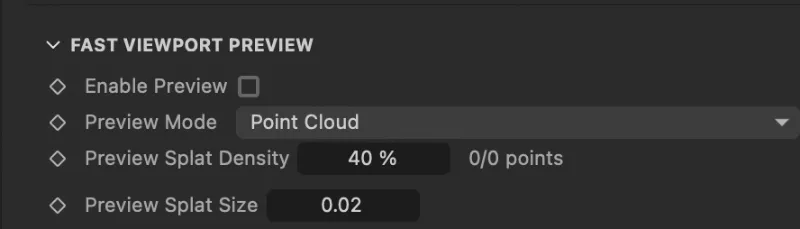
Viewport Setup: Set View Mode to Gaussian Splat for the best viewport look. If the scene gets heavy, lower Splat Density or enable Enable Preview in the preview section. Use Viewport Exposure, Opacity, Opacity Gamma, and Alpha Cutoff to refine the image.
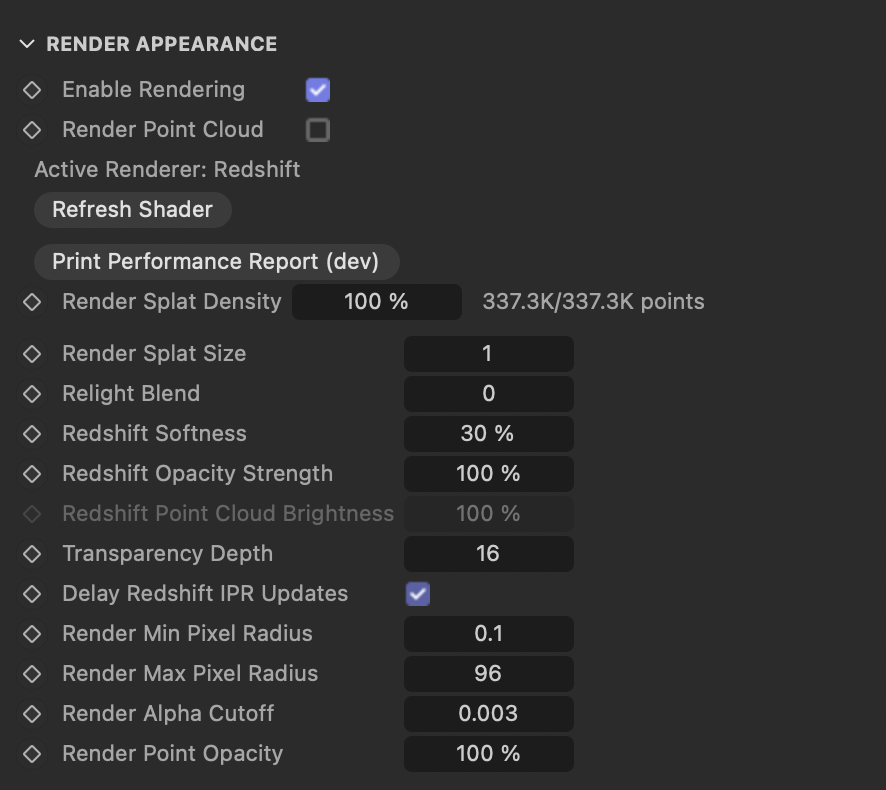
Standard / Physical Render: Open Render Appearance, enable Enable Rendering, and use the Universal (Standard/Physical) workflow. This creates a renderable proxy/material path for final output. Fine-tune Render Splat Density, Render Splat Size, Render Alpha Cutoff, and Render Exposure to match the viewport more closely.
Redshift Workflow: Make Redshift the active renderer, then enable Enable Rendering. The plugin will build the Redshift-compatible render shader/material setup. If you adjust the look later, click Refresh Shader. For final look development, focus on Render Splat Density, Render Splat Size, Render Min Pixel Radius, Render Max Pixel Radius, and Relight Blend.
Relighting: Relight Blend controls how much the render stays faithful to the captured splat colors versus how much it reacts to render lighting. Lower values preserve the original scan look more strongly. Higher values make the splat feel more relightable. If the slider does not visibly update the material, click Refresh Shader once so the atlas/material gets rebuilt.
Viewport Matte for Compositing: The viewport can't export images with an alpha channel so you must use Alpha Mode to render a separate black and white image for composite.
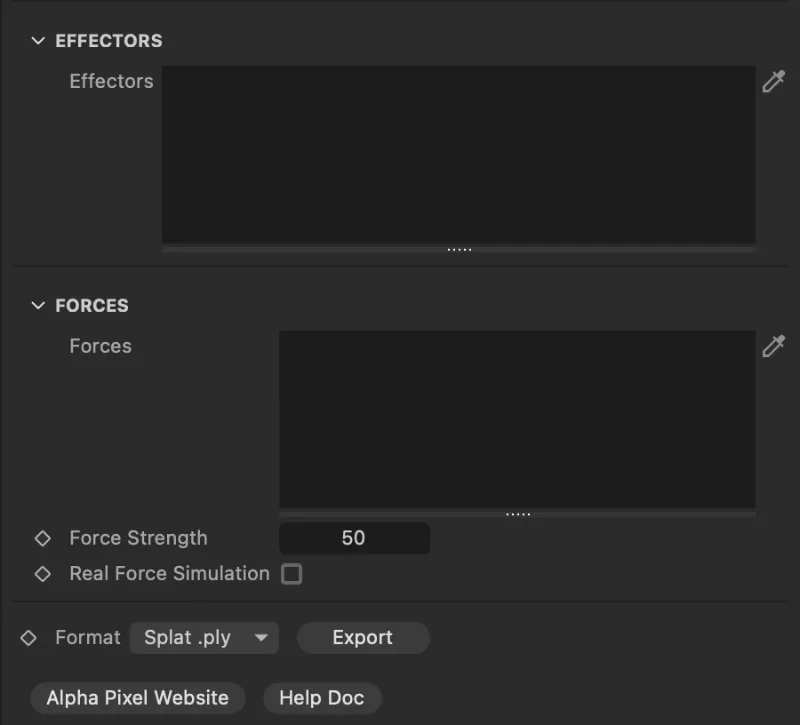
Exporting: Use Format and Export to write the current splat state back out. Choose .ply for a simpler export or Splat .ply when you want to preserve splat-oriented data for downstream splat workflows.
parameters
Notes
-
Heavy Scenes - Very dense splat files can impact viewport responsiveness, especially when using true splat display, force-based setups, or multiple effectors at the same time. Performance will vary on different computer setups.
-
Enable Rendering - If you are working mainly with viewport splats as your final output make sure you don’t have “Enable Rendering” turned on or it will be very slow when working with things like effectors and fields.
- Push Apart Effector - The push apart effector does calculations per splat and may be very slow with a large number of splats.
- Render Point Cloud - When using Render Point Cloud, relighting controls are not used. That mode is intended as a simpler point-based render path.
- Relight Rendering - Relighting works best when your scene lighting is stable and predictable. Complex animated light rigs or tag-driven light setups can sometimes produce results that differ from simpler static lighting.
- Viewport vs Final Render - The true Gaussian splat viewport is intended for preview and matte work, but final rendered output may still differ depending on the render mode, renderer, and scene lighting.
-
Refresh Shader - When changing settings in Render Appearance, you may need to click Refresh Shader to fully update the render material.
-
Orthographic Views - When viewing splats through an orthographic camera or viewport, some splats may rotate or orient in a less predictable way compared to perspective views.
- Dirty Renders - If a splat looks dirty in the Redshift Render the main cause is likely the Redshift Transparency Depth is too low. Set it higher to let it see through more splats. This can be done in the Render Appearance menu in the plugin.
Change Log
-
03-16-26: Version 1.0 Launched
- 04-16-26: Versioon 1.01 - Fixed dirty look in Redshift
- 04-20-26: Version 1.1 - Huge viewport speed boost, drag and drop files in viewport, Octane Support (Beta)
- 05-01-26: Version 1.11 - Fixed viewport visibility issue
- 06-12-26: Version 1.15 - More consistent Redshift IPR/final renders, better huge-scene splat sizing, faster Redshift workflow, improved relighting behavior, and new Redshift tuning parameters.