Gaussian Splatting Explained: Tutorials and Workflows for Cinema 4D and After Effects

Basics of Gaussian Splats
Gaussian Splatting is a new technique in 3D rendering that uses point clouds to recreate realistic scenes from real-world captures. It’s an exciting shift in how we can turn photos or video into rich, immersive visuals — no traditional 3D modeling required.
In this guide, I’ll break down what Gaussian Splatting is, how it works, and how you can start using it in apps like Cinema 4D and After Effects. I’ve also included a free tool, exclusive to Alpha Pixel subscribers, to help you import splats and get started faster.
Creating Gaussian Splats
To create a Gaussian Splat of a real-world environment, you’ll need to start with photogrammetry which involves capturing a series of images or video of a scene from multiple angles. You can do this using just about any camera: a DSLR, drone, or even your phone.
Photos vs. Video
You can upload using either photo or video to capture your scene or objects. There are pros and cons to each.
• Video gives you more frames and coverage, which can help with reconstruction but will likely give worse quality when it comes to sharpness.
• Photos usually gives you better image quality and more control but need to be careful to capture the whole scene or object with lots of images and angles.
Either approach works — just make sure you’re following the upload guidelines of whatever app you’re using. Some have file size or video length limits, and some require a specific number of images to process properly.
Tools for Processing Splats
Two of the most popular apps right now are:
• Luma Labs AI (recommended if importing to After Effects)
• Polycam (my personal pick — They offer various ways of working with your captures and offer more export options along with solid tutorials)
Both can generate either a traditional 3D model or a Gaussian Splat. For Polycam you’ll want to export a Splat PLY file and for Luma Labs AI you will want to download the Gaussian Splat File. Pay attention to the options because there are many export options and the wrong one will lead to errors when importing into a splat editor. The image to the right is a look at the export options from Polycam.

The next set of export options is from Luma Labs AI.
Both of these apps have built-in tools to capture photos or video directly from your phone, or you can shoot your footage first and upload it later.

Editing Gaussian Splats
Once you’ve created a Gaussian Splat, you might find that the point cloud is a bit messy or too large to work with efficiently. Most 3D programs can handle it, but depending on the size and density, it’s something to keep in mind.
You might also want to:
• Clean up the scene by removing unwanted parts of the point cloud
• Isolate a specific object or area
• Reposition or rotate the splat to better fit your workflow
• Fix orientation issues, like the scene importing on the wrong axis
For all of this, there’s a free web-based tool called Super Splat that makes it easy to edit your Gaussian Splats directly in the browser. It’s super handy for trimming down your scene or making quick adjustments before importing into other software.


Working With Gaussian Splats in Cinema 4D
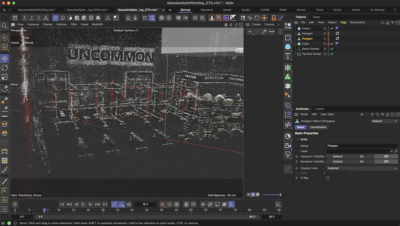
Cinema 4D now has a much more direct workflow for Gaussian splats with Gaussian Splat Studio. Instead of relying on workaround-based setups, the plugin lets you import, view, render, and export Gaussian Splat point data directly inside C4D, with dedicated controls for viewport display, rendering, and look development. It also supports Redshift and Standard/Physical material workflows, making it much easier to integrate splats into real production scenes.
One of the biggest advantages of the plugin is that it keeps the process procedural and non-destructive. You can adjust splat density, size, opacity, orientation, and render behavior without rebuilding the scene, and you can keep viewport preview settings separate from final render settings so heavy splat scenes stay easier to manage while you work.
Gaussian Splat Studio also opens up much more creative control than a simple import pipeline. You can drive splats with MoGraph effectors, forces, and fields, generate depth maps from effectors, and choose between multiple rendering styles depending on the look you want — including True Gaussian Splat for a scan-faithful result, Point Cloud for a faster stylized approach, and geometry-based looks when you want broader shading control.

A typical workflow in Cinema 4D now looks like this:
- Import your Gaussian Splat
.plyfile into Cinema 4D using Gaussian Splat Studio. - Adjust the viewport settings to control density, splat size, opacity, and display behavior for smoother navigation.
- Choose the render style that fits your shot, whether that is a true splat look, a point-based style, or a geometry-driven setup.
- Refine materials automatically through Redshift or Standard/Physical shader generation.
- Add effectors, forces, and fields if you want to animate, isolate, distort, or art-direct portions of the splat.
- Render the final result, or export a cleaned version back out as
.plyor Splat.plyfor downstream use.
The plugin also includes tools for relighting, fast previews, and even generating viewport mattes, which makes it much easier to use Gaussian splats in compositing, motion design, and look-dev workflows without leaving Cinema 4D. Overall, it turns splats into something you can treat much more like a native creative system inside C4D rather than a hacked-in workaround.
Working With Gaussian Splats in After Effects

The easiest way to use Gaussian Splats in After Effects is with a plugin by Irrealix, simply called Gaussian Splatting. You can grab it from AE Scripts.
The plugin is pretty straightforward — it gives you an interface inside After Effects where you can load a Gaussian Splat and start working with it. Just keep in mind: not all .ply files will work. You’ll need one that’s specifically exported as a Gaussian Splat PLY.
The team behind the plugin recommends creating your splats with Luma Labs AI that we mentioned earlier. Once your scene is processed, download it using the “Gaussian Splat” option. From there:
1. Import the .ply splat file into After Effects using the plugin.
2. Create a new solid.
3. Apply the Gaussian Splatting effect and load in your file.
4. Create a Camera and move around your scene!
That’s it — you’ll see your splat rendered directly in your comp. There are also versions of the plugin available for Nuke and DaVinci Resolve, if you’re working in those environments too.