
Hide and
Seek.
For Cinema 4D.
The Hide and Seek Cinema 4D plugin helps you find, select and organize objects and tags in complex scenes. Search by name, type or hierarchy, work with the results together or one at a time, then save useful selections for later. Use hide, reveal and solo controls to focus on the part of the scene you need.
$15
Cinema 4D 2024–2026
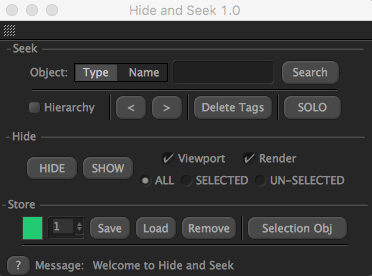
Hide and Seek — directly in Cinema 4D.
AT A GLANCE
Hide and Seek core features.
- Find objects by name or type
- Search the whole scene or a specific hierarchy
- Find tags as well as objects
- Hide, reveal or solo the search results
- Cycle through results for individual edits
- Save selections and recall them later
Built for your workflow
A closer look.
Less time searching.
More time creating.
Create complex selections
Find exactly
what you need.
Build a selection from object names, types or a specific hierarchy. For example, search for splines across a scene, then narrow the task to helix splines or editable splines when you need a more precise result.
For a targeted task, find Sweep objects inside one hierarchy or step through Text objects one by one. Choose the search scope first so a change intended for one assembly does not affect similarly named objects elsewhere.
Object type
Object name
Hierarchy
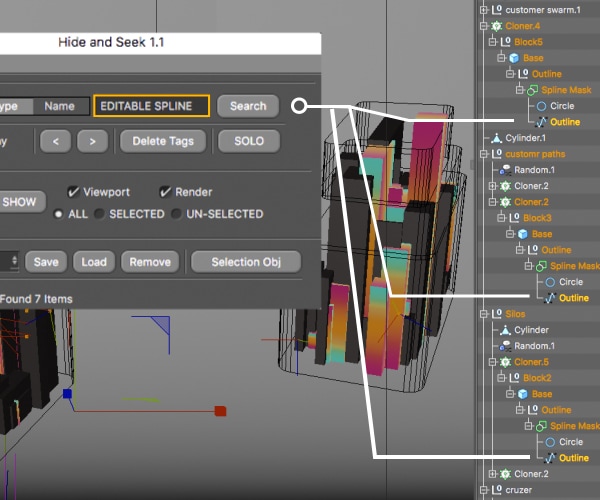
Hide and Seek in Cinema 4D.
Full tag search support
Tags included.
Nothing missed.
Include “Tag” in a search to find scene tags, such as texture, compositing or render tags. Inspect the results before changing or deleting them, especially when the search covers the whole scene.
Listed search support includes Corona, Redshift, Octane, Vray and Xparticles. These names describe search support for their scene elements; use the compatibility checklist below when choosing your Cinema 4D release.
Corona
Redshift
Octane
Vray
Xparticles
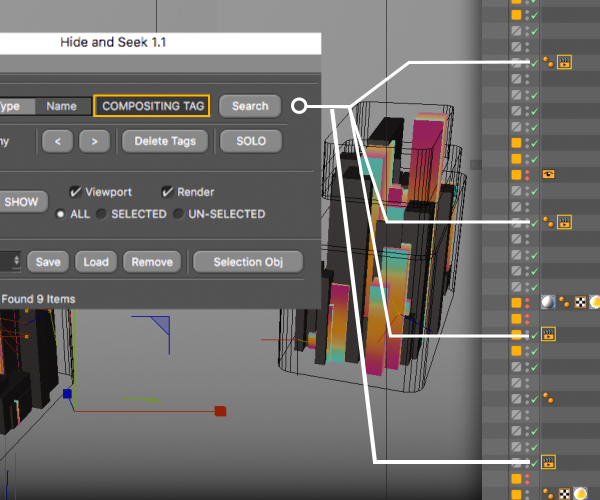
Hide and Seek in Cinema 4D.
Visibility and fine control
Focus your scene.
Once you have a result set, use the navigation controls to inspect objects one at a time or work on selected items together in the Attribute Manager. This suits tasks such as checking Text objects individually while retaining a useful selection.
Use hide, reveal and solo controls to concentrate on the scene elements you need. Review the resulting visibility before rendering or handing the scene to another artist.
Hide
Reveal
Solo

Hide and Seek in Cinema 4D.
Save and reuse selections
Find it once.
Use it again.
Save a selection you expect to use again, then recall it when you return to that part of the scene. Typical examples include a group of lights, a set of editable splines or the objects in one product assembly.
You can also store selections with Cinema 4D’s native Selection Objects. Use clear names for saved sets so another artist can understand what each selection is meant to contain.
Saved selections
Selection Objects

Hide and Seek in Cinema 4D.
Compatibility
Check your setup.
Hide and Seek 1.4
Cinema 4D
2024
2025
2026
Listed support
✓
✓
✓
English interface. Search support includes Corona, Redshift, Octane, Vray and Xparticles.
TRY A SMALL SELECTION
Find it.
Check it. Reuse it.
- Install and open the plugin. Follow the downloaded package instructions. Our Cinema 4D plugin installation guide explains the general plugin-folder and restart process.
- Choose a search scope. Start with one hierarchy or a simple test scene, then search for an object name or type you recognize.
- Inspect the results. Cycle through matches before editing. Narrow the search if it includes objects outside the part of the scene you intended to work on.
- Make the adjustment. Edit the selected objects together where appropriate, or use the individual navigation controls for finer changes.
- Save a useful set. Store a selection you will revisit and give it a descriptive name. Check visibility again after using hide, reveal or solo.
See the Hide and Seek purchase page for the downloadable package and current purchase details.
Your next scene starts here.
A more focused way to work with complex Cinema 4D scenes.
$15
A few things before you dive in.
Can I search objects and tags?
Yes. Find objects by name or type, and include “Tag” in a search to locate tags. Choose a scene-wide search or a specific hierarchy to match the scope of the task.
Can I reuse selections?
Yes. Save and recall selections, or store them with Cinema 4D Selection Objects. Name each saved set for its purpose so it is easy to recognize later.
Can I edit the results one at a time?
Yes. Use the built-in navigation controls to cycle through the results. You can inspect individual objects or adjust compatible parameters for the selected items together in the Attribute Manager.
What should I check if a search returns too many objects?
Check whether you are searching the whole scene or a hierarchy, then make the name or type more specific. Inspect the result set before applying a global edit or deleting tags.
Which Cinema 4D versions and language are listed?
The current purchase listing names Cinema 4D 2024, 2025 and 2026. The interface is available in English. Follow the supplied package instructions and the installation guide below when setting it up.
Release history
January 11, 2026 — Cinema 4D 2026 support.
September 30, 2023 — Cinema 4D 2024+ support.
September 27, 2020 — R23 support.
November 11, 2019 — Third-party renderer search support and saving/loading fixes for R21.
November 8, 2019 — Updated search for R21 objects.