Model
Fonts.
For Cinema 4D.
The Model Fonts Cinema 4D plugin builds 3D text from purchased, hand-modeled font sets. Enter a message, choose an installed Model Font, then adjust letter spacing, depth, bevels and face rounding. The plugin is included with every font purchase.
$30
Cinema 4D · Plugin included with every font purchase
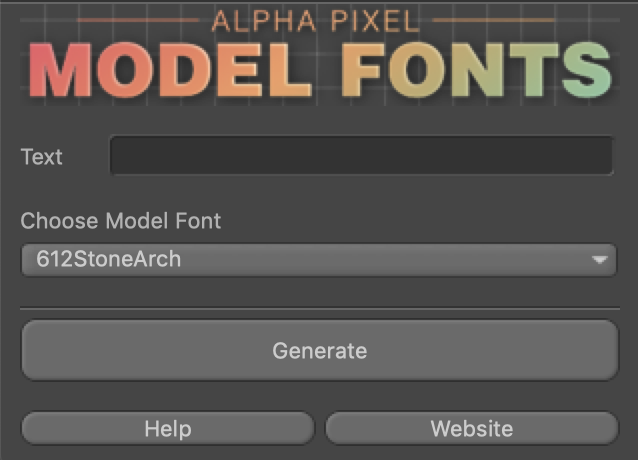
Model Fonts — directly in Cinema 4D.
AT A GLANCE
Model Fonts Cinema 4D plugin
core features.
- Hand-modeled font sets for 3D typography
- Uppercase, lowercase and special characters supplied with each font
- Generate a message from your installed Model Fonts
- Interactive controls in the Model Fonts tag
- Adjust individual letters in the viewport
- Control depth, bevel, face rounding and subdivisions
- Adjust tracking and word spacing
- Bake the current result into polygon objects
- Plugin included with every font purchase
Built for your workflow
A closer look.
Beautiful geometry.
Type you can make your own.
Professionally modeled fonts
Made to bend.
Built to look good.
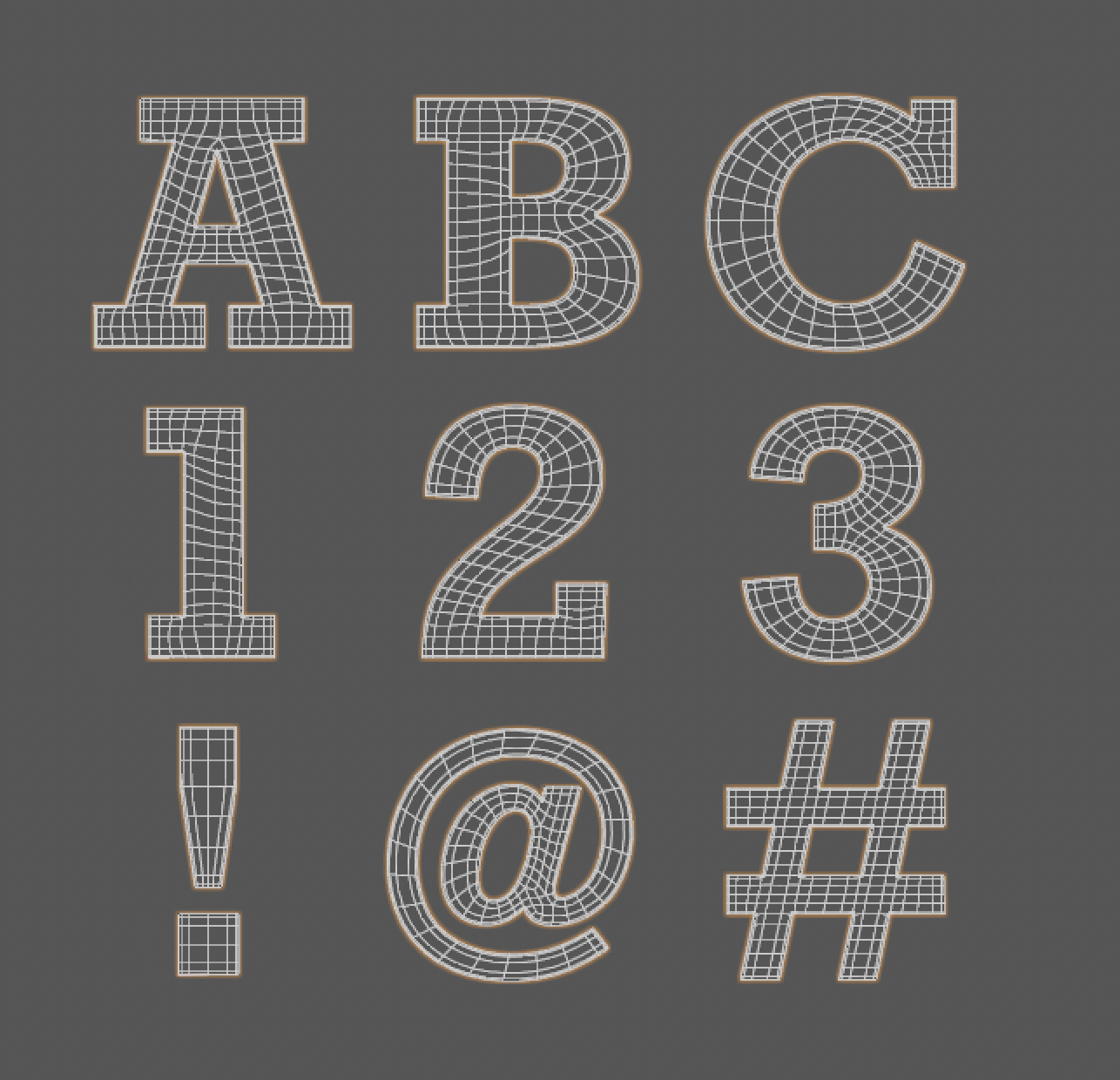
Model Fonts are modeled letter sets rather than outlines generated from ordinary system fonts. Their geometry is designed for shaping and deformation in Cinema 4D, with uppercase, lowercase and special characters supplied as part of each font set.
Start with the modeled forms, then test the bend, twist or other deformation your design needs. Adjust subdivisions to suit the shot instead of adding detail before you need it.
Clean edge flow
Uppercase + lowercase
Model Fonts in Cinema 4D.
Instant type
Your message.
Ready to shape.
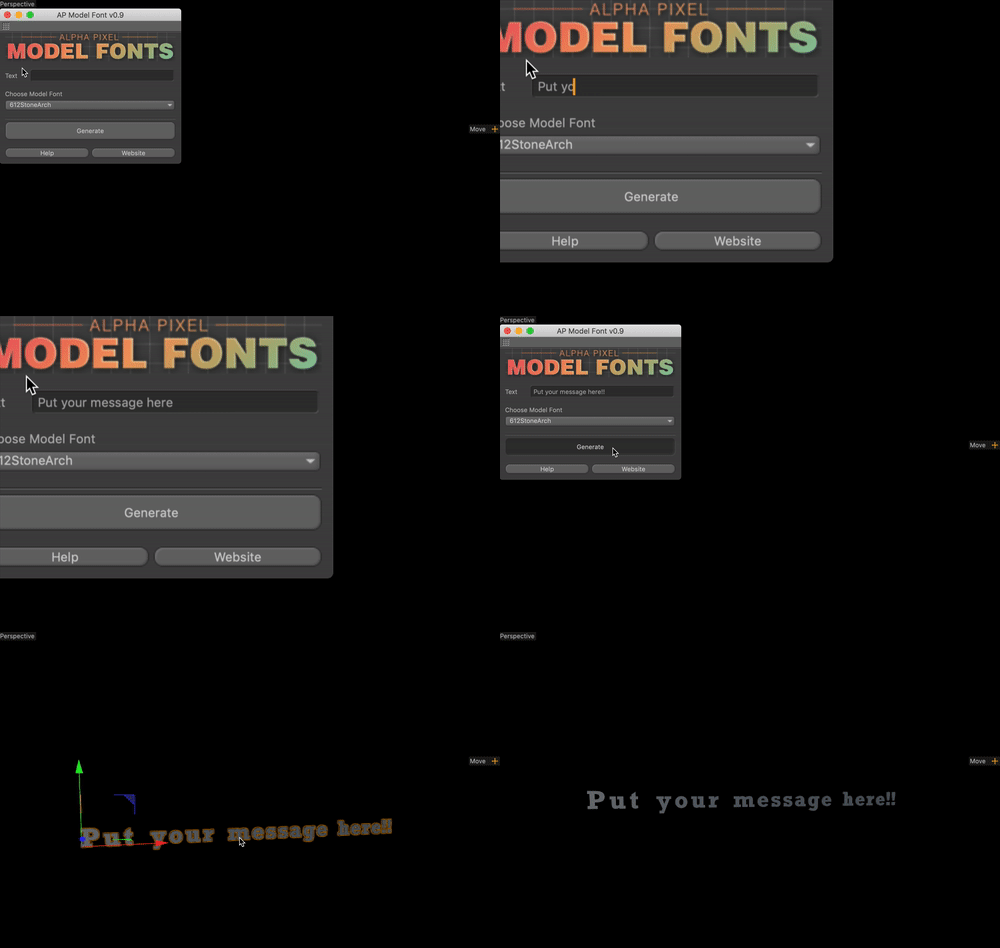
Open the AP Model Fonts plugin, enter your message and choose a purchased, installed Model Font from the dropdown. Generate the text to create a parent null, individual letter objects and a Model Fonts tag.
Select that tag to access the interactive settings. The plugin uses its supplied font geometry; it does not load arbitrary fonts installed on your computer.
Instant generation
Purchased font selection
Model Fonts in Cinema 4D.
Kern, track and scale
Every letter.
Just where you want it.
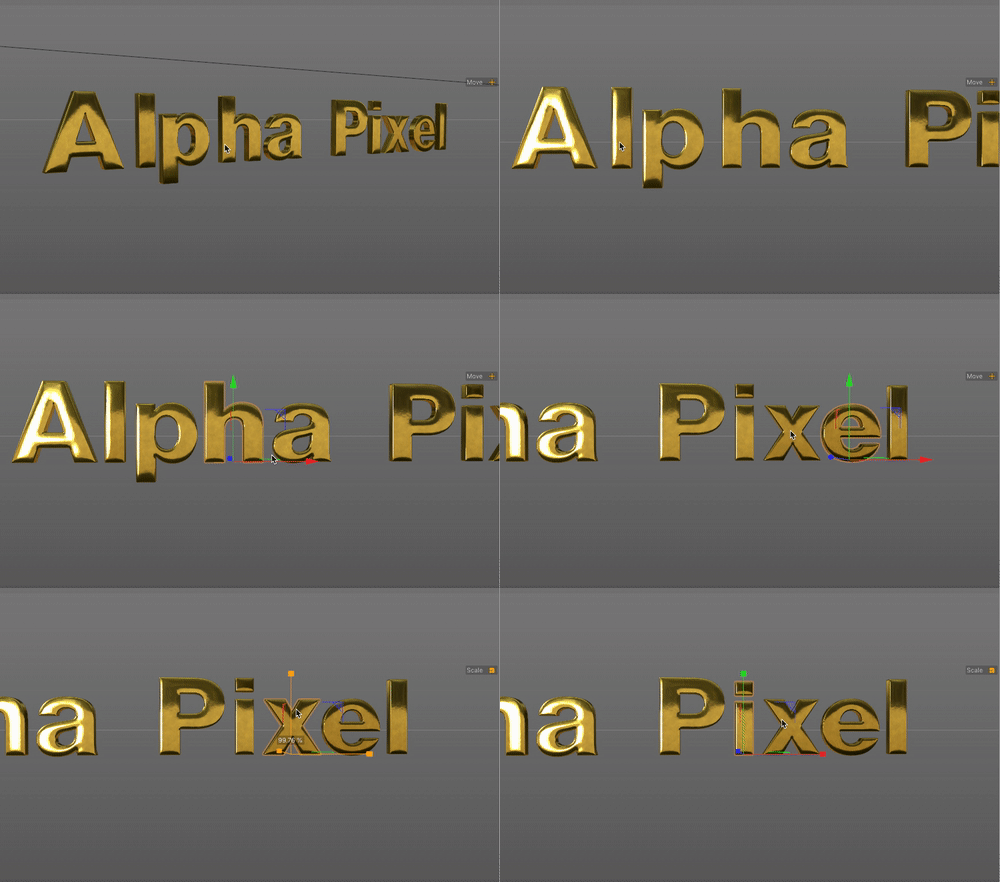
Use Tracking for the overall space between letters and Word Spacing for the gaps between words. For a specific letter pair, select a letter and move it along the viewport’s X axis; the following letters move with it.
Individual letters can also be positioned on the Y and Z axes. When scaling letters in the interactive setup, use Object Mode rather than Model Mode, as described in the original quick start.
Viewport controls
Tracking
Letter scale
Model Fonts in Cinema 4D.
Customize the look
Catch the light.
Find your own style.
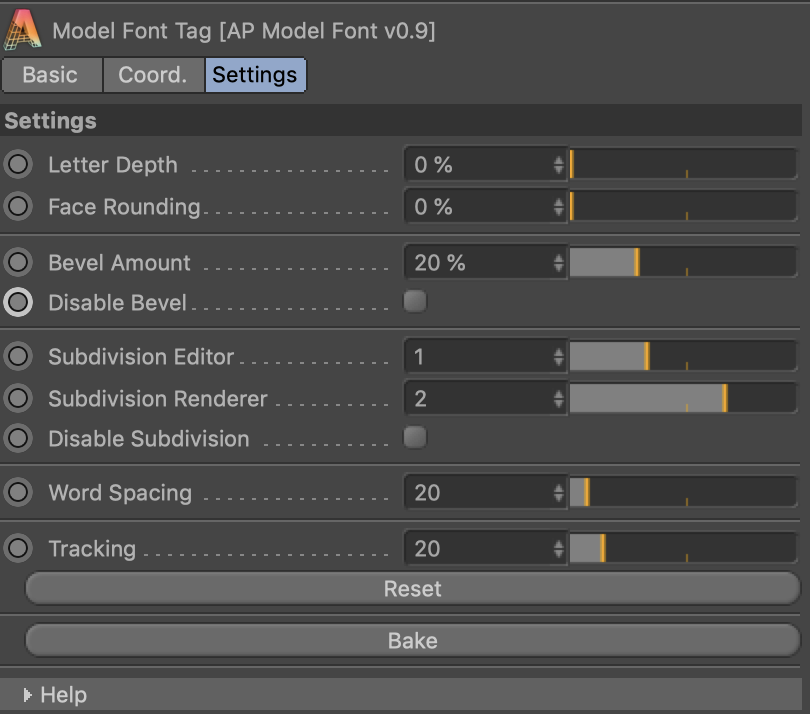
Letter depth changes the extrusion, bevel settings shape the edges, and Face Rounding adds a subtle curve to the letter fronts to influence highlights and reflections. Editor and render subdivision controls let you balance detail with responsiveness.
Review the result under your intended lighting. Strong bevel and face-rounding settings can interact, so adjust them together rather than assuming higher values always improve the geometry.
Bevel
Face rounding
Subdivision
Thickness
Model Fonts in Cinema 4D.
Bake the results
Make it yours.
Take it anywhere.
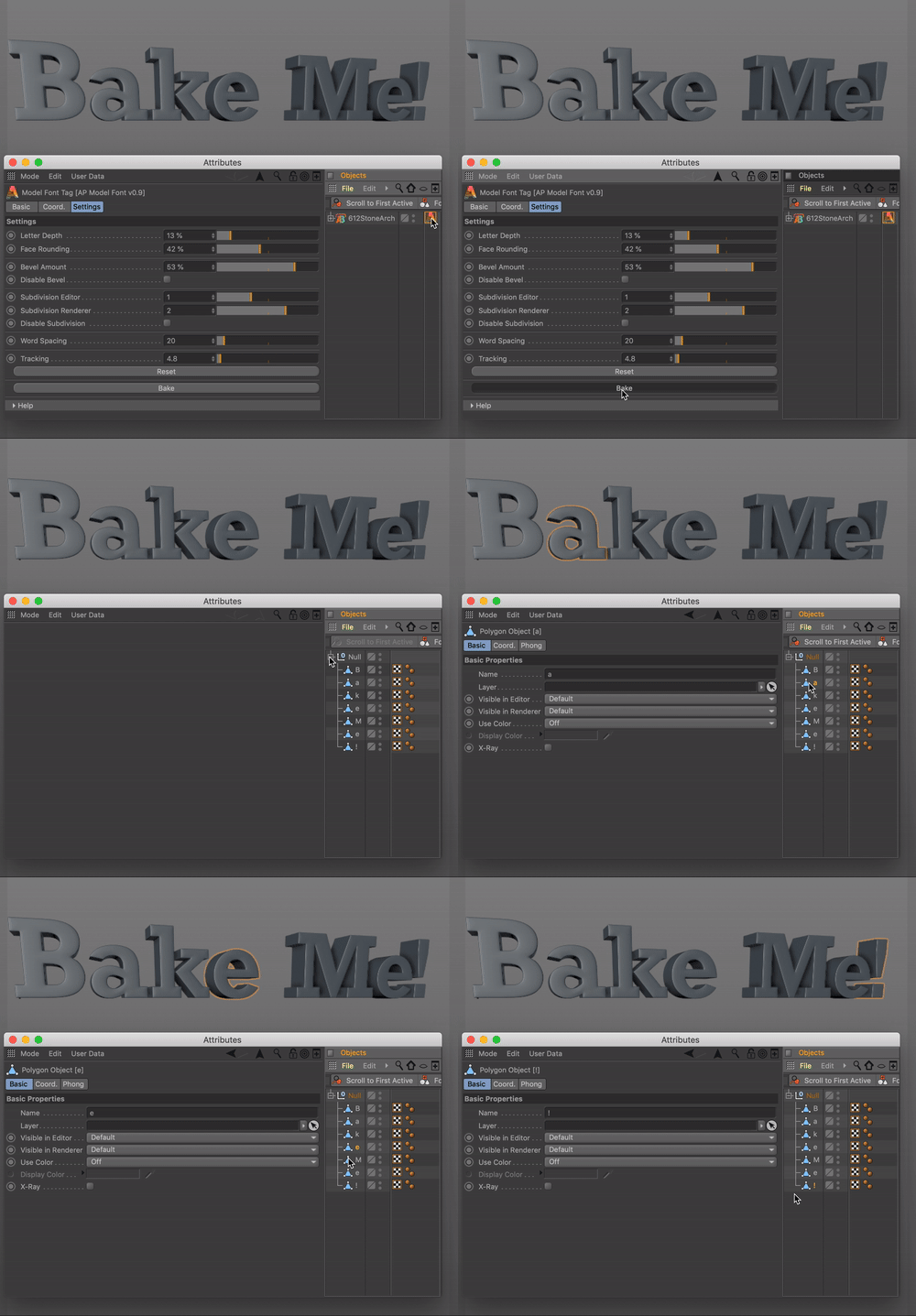
Bake converts the current letter shapes into ordinary polygon geometry and removes the interactive Model Fonts controls. Use it when the design is ready for direct geometry work or another Cinema 4D setup.
Keep an unbaked copy when you may need to revise the type controls later. Baking is a workflow choice, not a requirement for every scene.
One-click baking
Polygon objects
Model Fonts in Cinema 4D.
See Model Fonts in action.
START WITH A SHORT WORD
Your first message.
Then make it yours.
- Install the supplied assets. Follow the package instructions for the plugin and the Model Font you purchased. Our Cinema 4D plugin installation guide explains the general plugin-folder workflow.
- Generate a short message. Enter your text in AP Model Fonts, select an installed font and click Generate.
- Select the Model Fonts tag. Adjust depth, bevel, face rounding, tracking and word spacing while checking the result in the viewport.
- Refine the letters. Use the viewport controls for individual letter placement and Object Mode for scaling. Keep the generated hierarchy intact.
- Choose the next step. Keep the interactive setup for further revisions, place it with deformers under a new outer null, or bake a copy when you need ordinary polygon objects.
Your next scene starts here.
Bring better geometry and more control to your next piece of 3D type.
$30
A few things before you dive in.
Is the plugin included with a font purchase?
Yes. Each purchased Model Font includes the plugin. Install the supplied plugin and font assets, then choose from your installed Model Fonts in its dropdown.
Can I turn the letters into ordinary geometry?
Yes. Bake converts the current result into polygon objects and removes the interactive controls. Keep an unbaked copy if you want to revisit the settings later.
Can I use any font installed on my computer?
No. This system uses the hand-modeled Model Font sets you have purchased and installed, rather than importing ordinary system fonts.
How should I add deformers?
Keep the generated Model Fonts hierarchy intact. Place its parent null and your deformer under a new outer null instead of adding the deformer among the generated letter objects. The original manual describes this arrangement for keeping interactive controls available.
What is the difference between kerning, tracking and word spacing?
Tracking changes spacing across the letters, while Word Spacing adjusts the gaps between words. Viewport kerning lets you adjust a particular letter position; moving along X shifts following letters with it.