CINEMA 4D • PLUGIN
Trypogen 2.0.
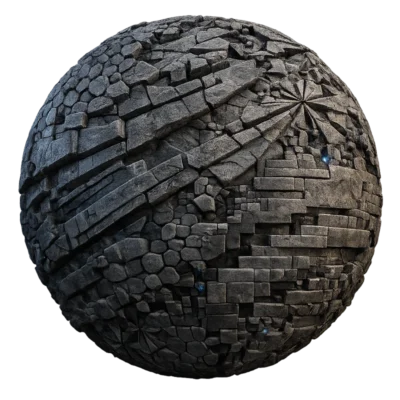
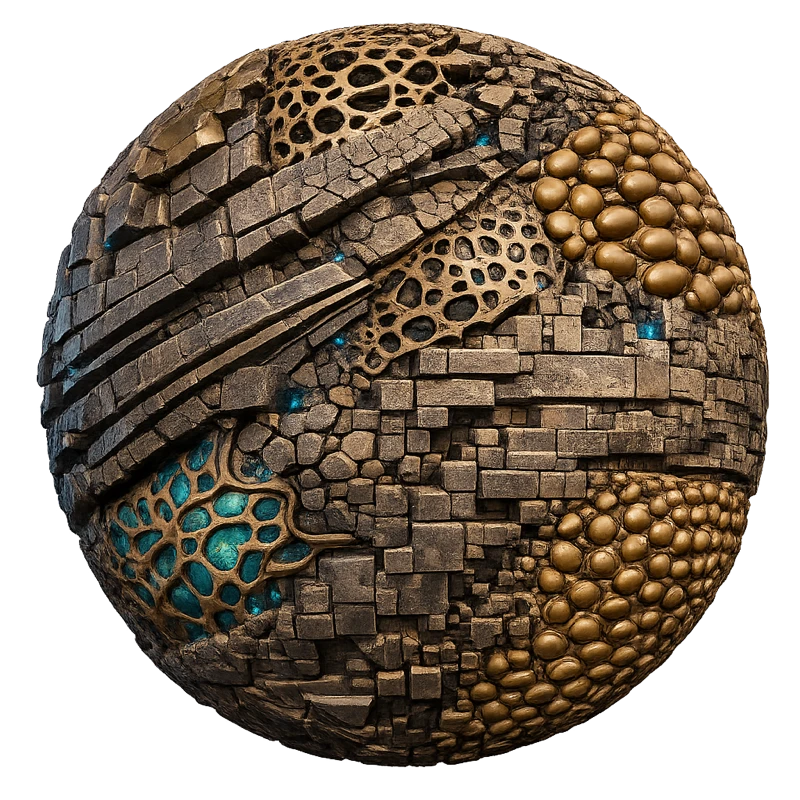
The Trypogen Cinema 4D plugin by Merk Vilson turns polygon objects and primitives into procedural, organic geometry. Use it as a Cinema 4D mesh generator to explore abstract forms and variations from a simple starting mesh.
Compare shapes, refine the amount of detail and develop a direction for your next still or animation. The examples below show the interface, generated meshes and a Voronoi Fracture workflow, so you can see where the tool fits into a scene.
Creator-listed compatibility: Cinema 4D R21–2026.
AT A GLANCE
Trypogen Cinema 4D plugin
features.
Generate procedural geometry from polygon objects and primitives
Explore organic, abstract and open mesh structures
Compare different mesh modes and variations
Adjust depth, thickness and subdivision in the reference interface
Develop variations while keeping your source geometry available
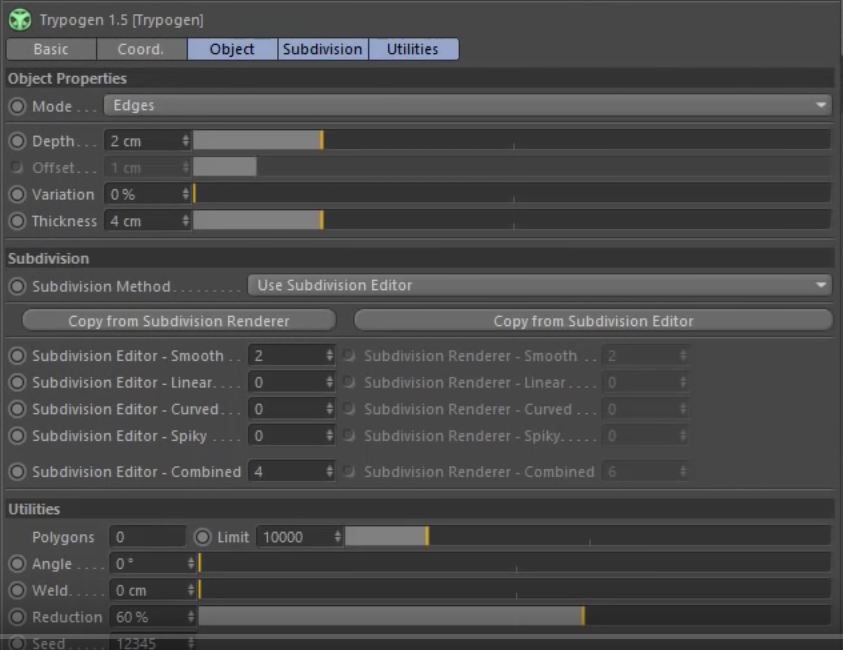
Earlier Trypogen 1.5 interface reference. Current version and compatibility are listed by the creator.

02 / BUILT FOR YOUR WORKFLOW
Turn Simple Objects Into Complex Abstract Forms
A simple source object gives you a clear way to judge how Trypogen changes the silhouette and surface. Compare a few starting shapes before adding detail: the spacing and structure of the source mesh influence what you see in the generated result.
For abstract visuals or concept work, choose a direction at low detail first. Then increase complexity where it improves the image, rather than starting with the densest possible mesh.
03 / BUILT FOR YOUR WORKFLOW
Explore variations
from one object.
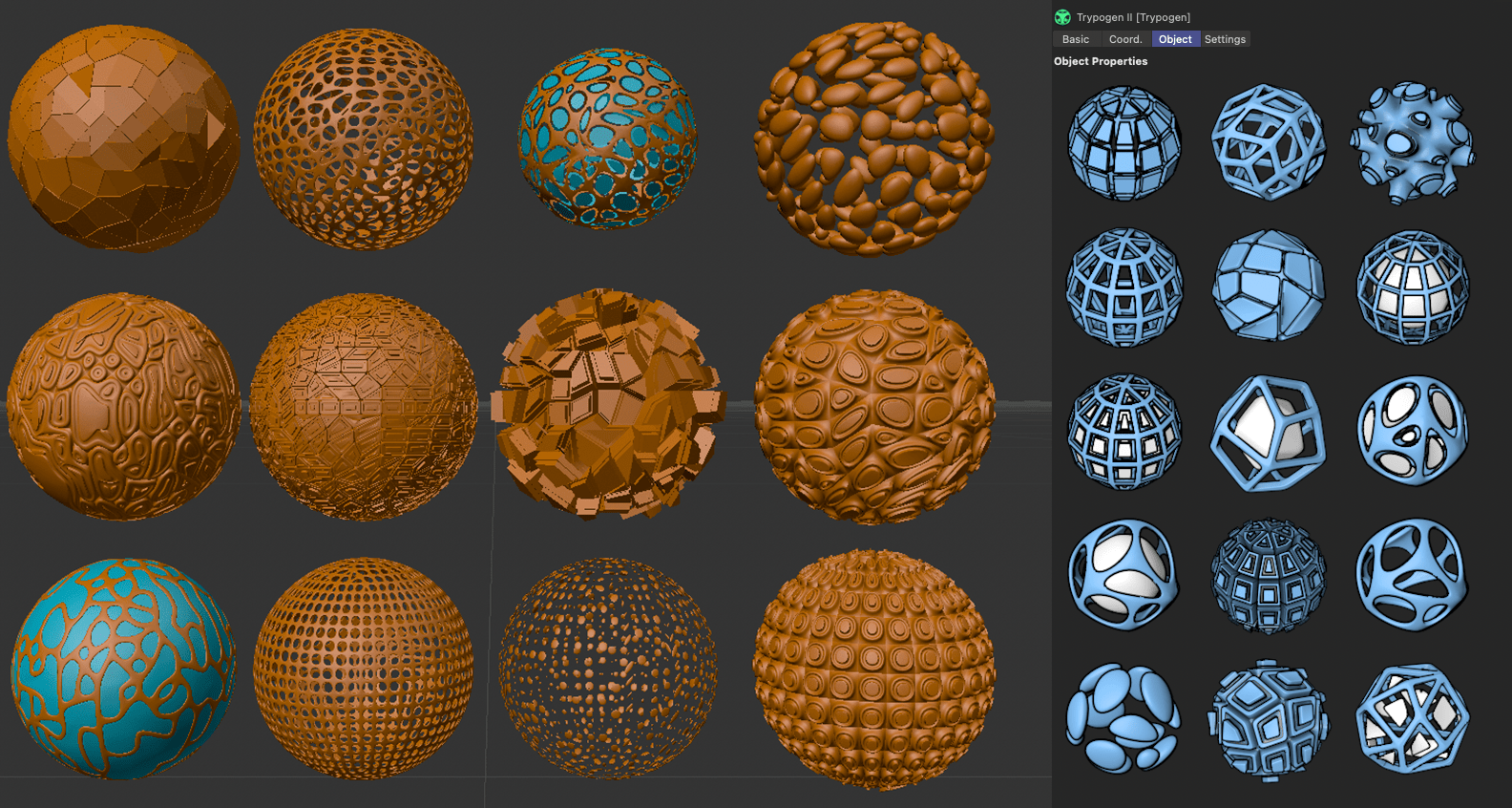
Use the mesh modes and adjustable parameters to explore procedural abstract geometry from the same source. The earlier reference interface shows Depth, Offset, Variation and Thickness controls, alongside separate subdivision settings.
Change one setting at a time and compare the silhouette, openings and surface detail. Save useful scene variations as you go so you can return to a shape without recreating every adjustment.
04 / BUILT FOR YOUR WORKFLOW
Designed to Work With Voronoi Fracture
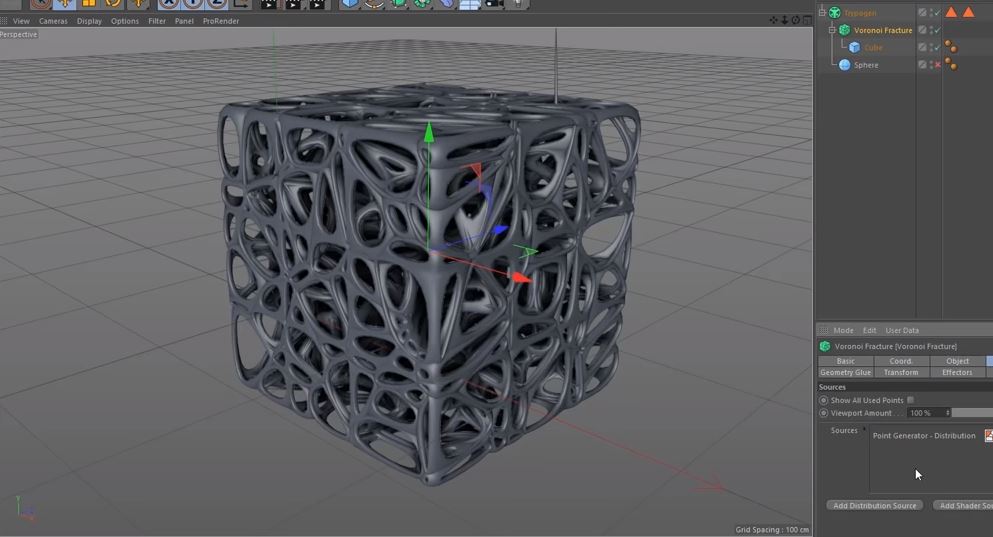
The example pairs generated geometry with Cinema 4D’s Voronoi Fracture object. Fracturing is a separate stage that can introduce pieces and interior surfaces when you want a broken-up or layered treatment.
Use MoGraph Effectors to develop motion after the generated shape is working. Check the fragment size and scene complexity on a small setup before extending the effect to a longer animation.
05 / BUILT FOR YOUR WORKFLOW
Refine the mesh
with purpose.
Judge the result from your intended camera angle. A pattern that looks detailed in the editor can become too fine in a wide shot, while a close-up may benefit from more subdivision or a different thickness.
Viewport feedback depends on the source geometry, subdivision and scene settings. Keep an editable source, work at a manageable detail level and make a small test render before committing to final output.

START WITH A SIMPLE SCENE
Find your
starting shape.
- Check your plugin build. Use the creator’s download for your Cinema 4D version. Our Cinema 4D plugin installation guide explains the general folder setup; follow the supplied plugin instructions for version-specific details.
- Begin with simple geometry. Try a primitive or a low-detail polygon object so the changes are easy to read. Keep the original source available while you compare results.
- Explore a few modes. Look at the overall form first. Adjust depth and thickness in small steps, using the earlier interface screenshot as a control reference rather than an exact map of the current version.
- Add detail deliberately. Increase subdivision only when it helps the shape at the intended camera distance. Compare a saved variation before and after a major change.
- Test the finished treatment. Add materials and lighting, then make a small render. If the scene includes Voronoi Fracture or animation, test a short section before expanding the setup.
GOOD TO KNOW
Trypogen
questions.
What is Trypogen used for?
Trypogen is a procedural geometry tool for developing organic and abstract forms from existing objects. It is useful when you want to compare several shape directions without manually rebuilding each variation.
What geometry should I start with?
A simple primitive or low-detail polygon object makes it easier to understand how each setting affects the result. The source mesh matters, so compare a few shapes before investing time in a detailed setup.
Do I need Voronoi Fracture?
No. The Voronoi example shows an additional treatment for generated geometry. Use that separate stage when you want fragments or a broken-up result; begin with the underlying shape first.
Which Cinema 4D versions are supported?
The creator lists Trypogen 2.0 for Cinema 4D R21–2026. Check the current creator listing before buying or updating. The older interface screenshot on this page shows version 1.5 and is included as a workflow reference.
Where do I get the current download?
Trypogen is developed by Merk Vilson. The purchase buttons use our affiliate link to the creator’s Gumroad checkout. Current downloads and product support are provided by the creator.
COMPATIBILITY