CINEMA 4D • PLUGIN
Snap To Floor 1.5
The Snap To Floor Cinema 4D plugin by Merk Vilson keeps an object aligned to the floor as its shape or rotation changes. The demonstrations below show live grounding during rotation, modeling and a rolling-cube animation.
Use ongoing floor alignment when you want to keep checking contact while developing a model or animation. It serves a different workflow from placing an object once: the aim is to update the alignment as you work, rather than repeat a placement command after each change.
Creator-listed compatibility: Cinema 4D R15–2026.

01 / BUILT FOR YOUR WORKFLOW
Snap To Floor Cinema 4D plugin:
live grounding.
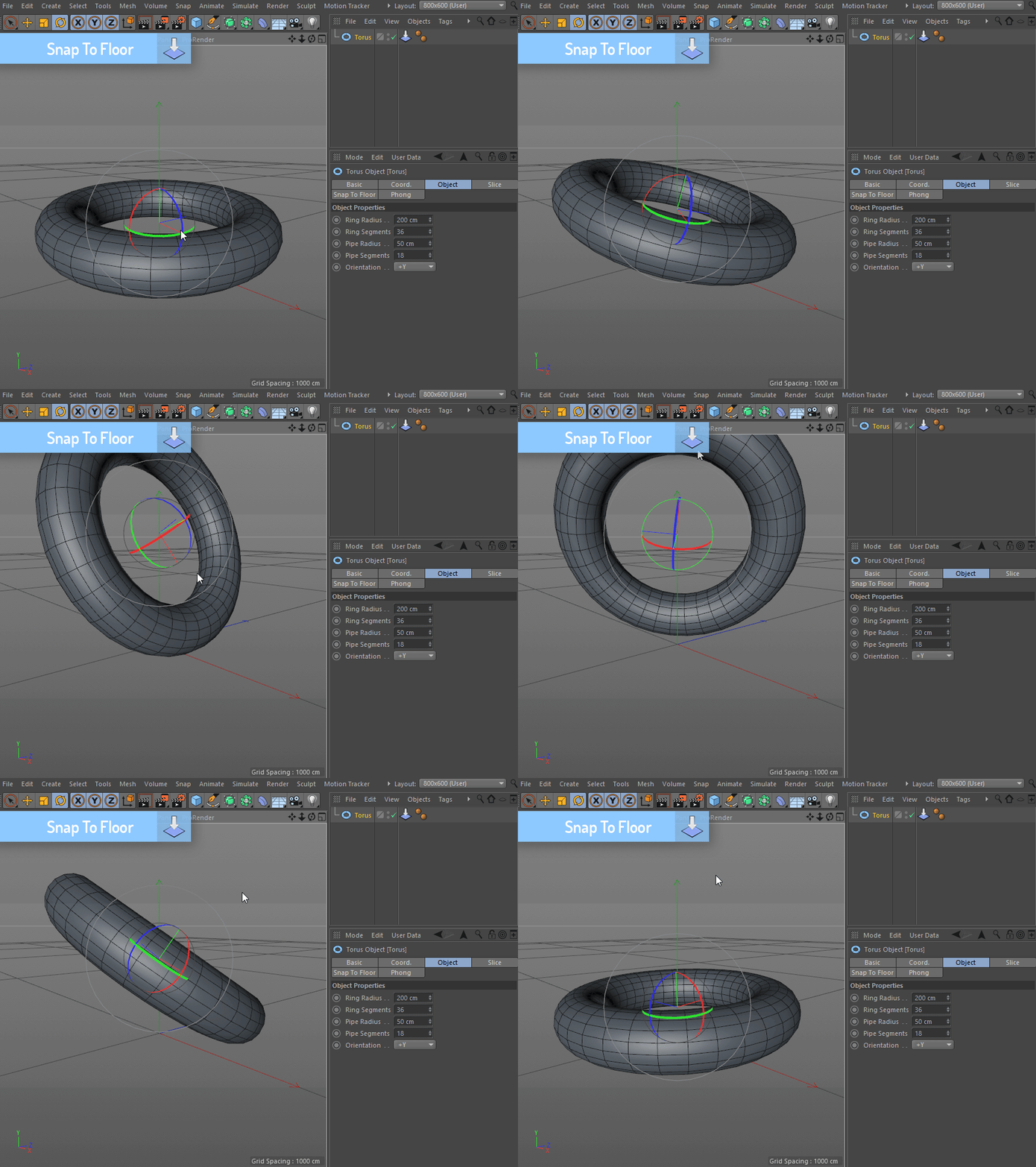
The torus example demonstrates Cinema 4D floor snapping as the object changes orientation. This is useful when a shape needs to remain grounded while you explore a pose, rather than manually correcting its height after every rotation.
Start with an isolated object so the floor contact is easy to inspect. Once the simple setup behaves as expected, test the hierarchy and animation you plan to use. Complex parent transforms and other scene controls deserve their own check.
02 / BUILT FOR YOUR WORKFLOW
Change the shape.
Check the contact.
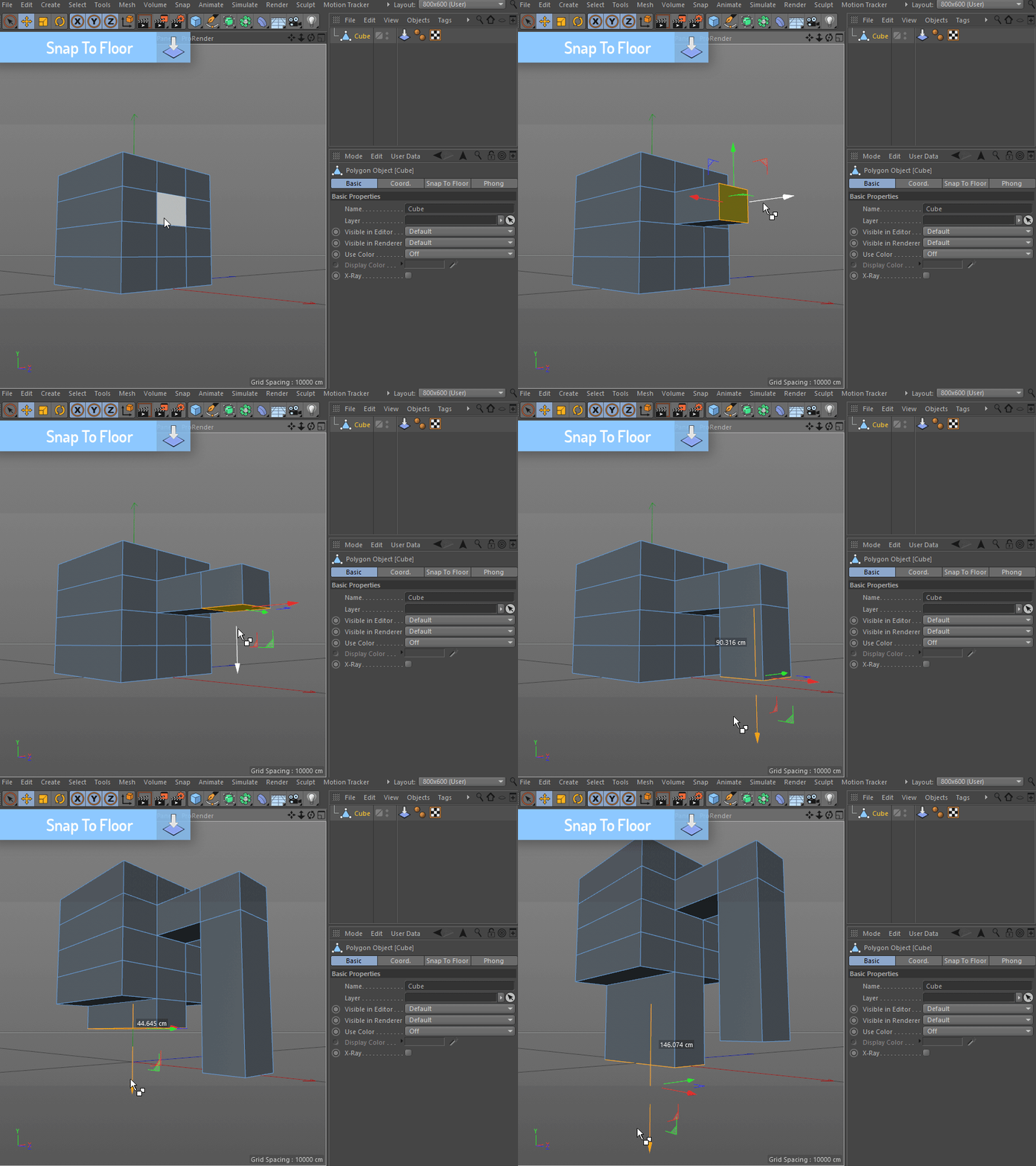
The modeling demonstration shows the object updating against the floor while its geometry is edited. That can help when developing props or other assets whose lowest point changes as you reshape them.
Keep a visible ground reference in the viewport and compare the result from the side. Check your intended source geometry and save a useful scene version before making larger modeling or hierarchy changes.
03 / BUILT FOR YOUR WORKFLOW
Animate the rotation.
Keep the floor in view.
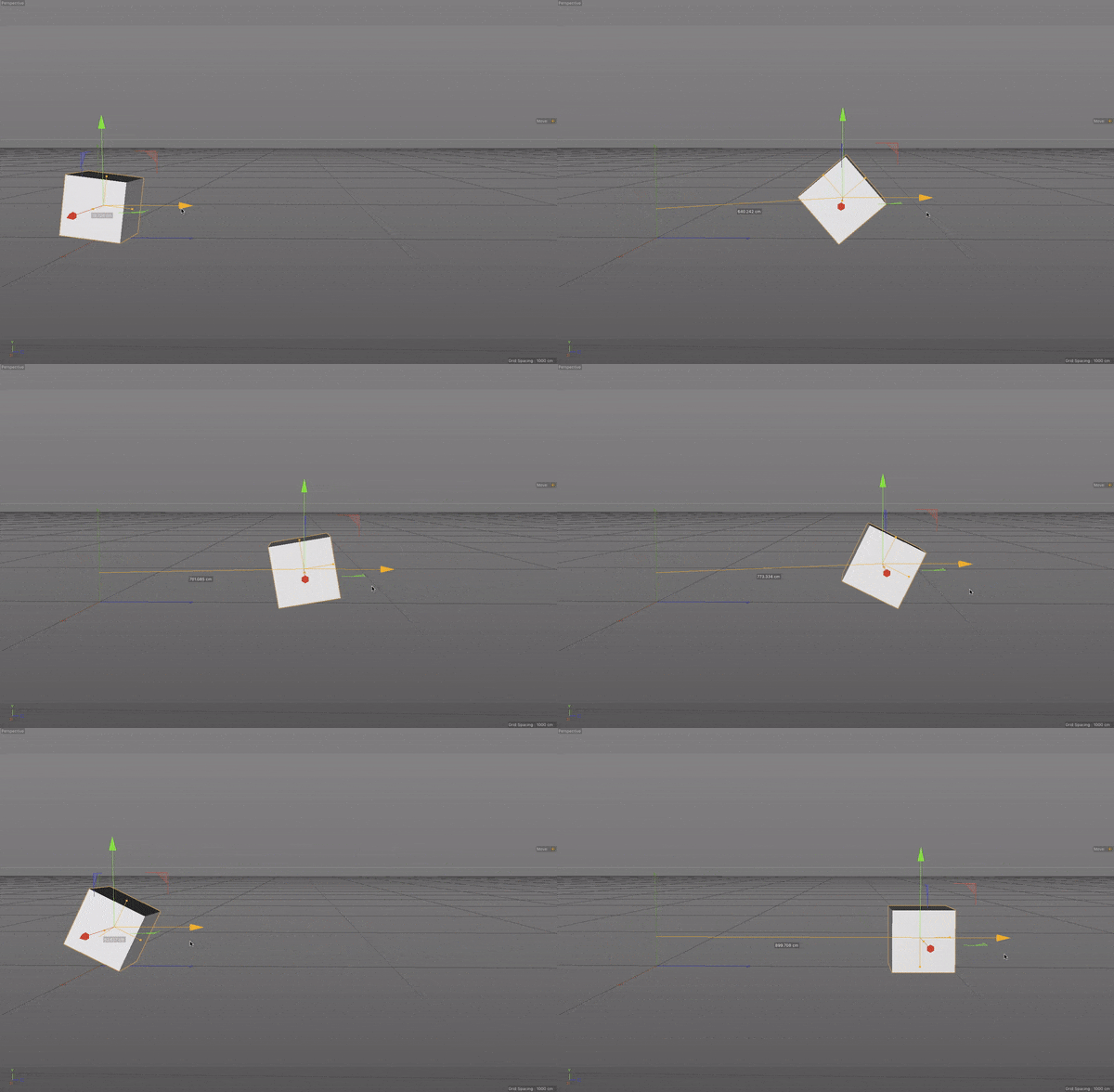
The rolling-cube example illustrates floor alignment during a change in rotation. Use it as a reference for keeping objects grounded in Cinema 4D while you develop a motion idea.
Floor alignment is not a complete physics simulation. You still need to design or simulate the motion, including horizontal travel and timing. Do not assume snapping alone creates friction, realistic rolling or collisions with other scene objects. Check the contact throughout the shot before rendering.
START WITH A SIMPLE SCENE
Start simple.
Check the movement.
- Check the download. Choose the creator’s build for your Cinema 4D version. Our Cinema 4D plugin installation guide covers the general folder setup; follow the supplied instructions for this plugin.
- Use a simple source. Begin in a small test scene with one object and an obvious floor reference. Avoid a complicated hierarchy for the first check.
- Try a change. Rotate the object or edit its shape and inspect the lowest point from a side view.
- Test the intended setup. Introduce your actual parent objects, animation and other controls, then check the full motion rather than just a single frame.
- Save and review. Keep a working scene version, then make a short preview before adding the setup to a larger project.
GOOD TO KNOW
Snap To Floor
questions.
How is this different from Drop To Floor?
Snap To Floor is Merk Vilson’s paid tool for ongoing floor alignment. Alpha Pixel’s separate free Drop To Floor tool places objects and hierarchies on the workplane in one click. Choose between updating contact as you work and running a placement command when needed.
Does it create a physics simulation?
No. Ground alignment alone does not calculate realistic rolling, friction or collisions throughout a scene. Use an appropriate animation or dynamics workflow for those parts of the shot.
Can I use it while modeling?
The modeling example demonstrates floor contact updating as the shape changes. Test your own source geometry and hierarchy before relying on the setup for a finished asset.
Which Cinema 4D versions are supported?
The creator currently lists Snap To Floor 1.5 for Cinema 4D R15–2026. This is creator-listed compatibility, not a claim that Alpha Pixel has tested every release.
Who provides the plugin and support?
Snap To Floor is developed by Merk Vilson. The purchase buttons use our affiliate link to the creator’s Gumroad checkout; current downloads and product support come from the creator.
COMPATIBILITY